%20--%3e%3csvg%20width='63.297821mm'%20height='39.29665mm'%20viewBox='0%200%2063.297821%2039.29665'%20version='1.1'%20id='svg8765'%20inkscape:version='1.1%20(c4e8f9ed74,%202021-05-24)'%20sodipodi:docname='OBALogoSingle2.svg'%20xmlns:inkscape='http://www.inkscape.org/namespaces/inkscape'%20xmlns:sodipodi='http://sodipodi.sourceforge.net/DTD/sodipodi-0.dtd'%20xmlns='http://www.w3.org/2000/svg'%20xmlns:svg='http://www.w3.org/2000/svg'%3e%3csodipodi:namedview%20id='namedview8767'%20pagecolor='%23ffffff'%20bordercolor='%23666666'%20borderopacity='1.0'%20inkscape:pageshadow='2'%20inkscape:pageopacity='0.0'%20inkscape:pagecheckerboard='0'%20inkscape:document-units='mm'%20showgrid='false'%20fit-margin-top='0'%20fit-margin-left='0'%20fit-margin-right='0'%20fit-margin-bottom='0'%20inkscape:zoom='1.1759259'%20inkscape:cx='179.85827'%20inkscape:cy='102.04724'%20inkscape:window-width='1920'%20inkscape:window-height='972'%20inkscape:window-x='0'%20inkscape:window-y='27'%20inkscape:window-maximized='1'%20inkscape:current-layer='layer1'%20/%3e%3cdefs%20id='defs8762'%20/%3e%3cg%20inkscape:label='Layer%201'%20inkscape:groupmode='layer'%20id='layer1'%20transform='translate(-31.351095,-50.101677)'%3e%3cpath%20style='fill:none;stroke:%233584e4;stroke-width:3.965;stroke-linecap:square;stroke-linejoin:round;stroke-miterlimit:4;stroke-dasharray:none;stroke-opacity:1'%20d='m%2077.07508,77.78787%2014.84134,8.87817%20V%2052.83397%20L%2034.08359,86.5521%20V%2053.69366%20l%2015.27351,9.31107'%20id='path8388'%20sodipodi:nodetypes='cccccc'%20/%3e%3c/g%3e%3c/svg%3e)
Connecting your Trading 212 account to Openbook lets you see all your holdings in one place — with live performance, dividend tracking, and Openbook's Reward and Risk scores layered on top. You do it with something called a read-only API key, which sounds technical but really isn't. This guide walks you through the whole thing in plain English.
The short version: you generate a key inside the Trading 212 app, copy two values across to Openbook, and you're done. It takes about two minutes, and because the key is read-only, Openbook can look at your portfolio but can never place a trade or move your money.
What you'll need
Before you start, make sure you have:
- A Trading 212 account — either Invest or Stocks ISA (both work).
- The Trading 212 app on your phone, or Trading 212 open in a web browser.
- About two minutes.
That's it. You don't need to install anything or understand any code.
What an API key actually is (and why it's safe)
Think of an API key as a read-only guest pass to your account. Instead of handing over your Trading 212 username and password, you create a special pass that grants only the permissions you choose — in this case, permission to look at your account data and portfolio, and nothing more.
Trading 212 actually gives you two values when you create one: an API Key ID and a Secret Key. They work as a pair, a bit like a username and password that only ever talk to each other. You'll copy both into Openbook — the API Key ID into the "API key" box, and the Secret Key into the "API secret" box.
Three things keep this safe:
- Read-only permissions. You'll only switch on the "Account data" and "Portfolio" permissions. Openbook never asks for — and you should never grant — permission to trade.
- Encrypted storage. Once you connect, Openbook encrypts your key with bank-grade AES-256 encryption and stores it as scrambled text. It's never kept in plain sight.
- You stay in control. You can disconnect in Openbook at any time, and you can delete the key entirely inside Trading 212 whenever you like.
Before you start: one key per account
This trips a lot of people up, so it's worth knowing up front. In Trading 212, your Invest account and your Stocks ISA are two separate accounts. Each one needs its own API key.
So if you want to import both, you'll generate one key for Invest and a second key for your ISA, and connect each to Openbook separately. If you only have one of them, you only need one key.
There's also a Practice account (Trading 212's demo mode with pretend money). Keys generated in Practice only work with Practice, and keys from your Live account only work with Live — so keep track of which one you're in.
How to generate your Trading 212 API key
Here's the part everyone worries about, broken into small steps. The wording below matches exactly what you'll see in the Trading 212 app.
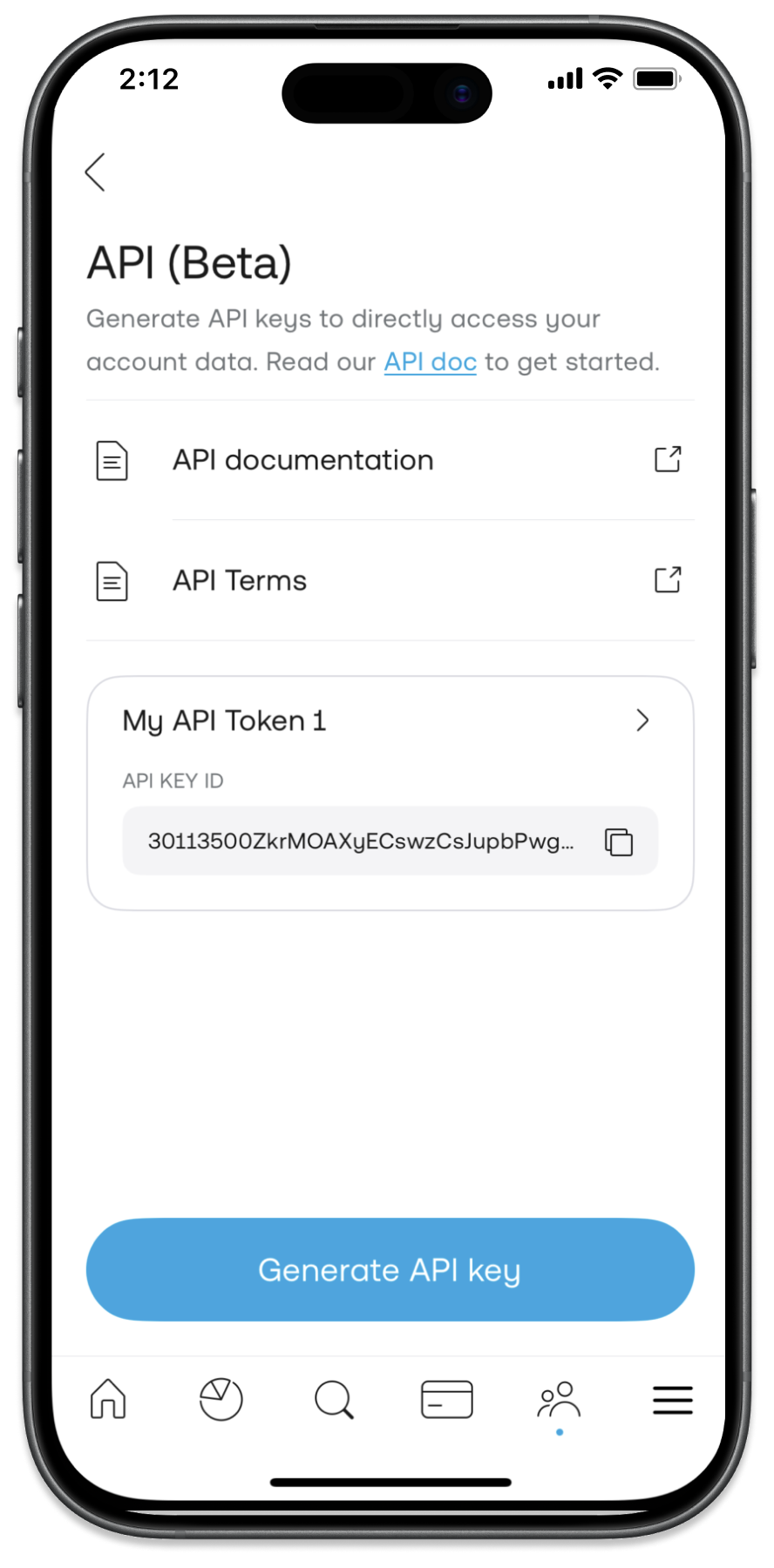
1. Open the API settings and tap "Generate API key". In Trading 212, go to Settings → API (Beta). On the mobile app the Settings menu sits behind your profile icon; on the web it's in the main menu. The feature is labelled "Beta" — if you can't find it, update your app to the latest version. Then tap the blue Generate API key button.
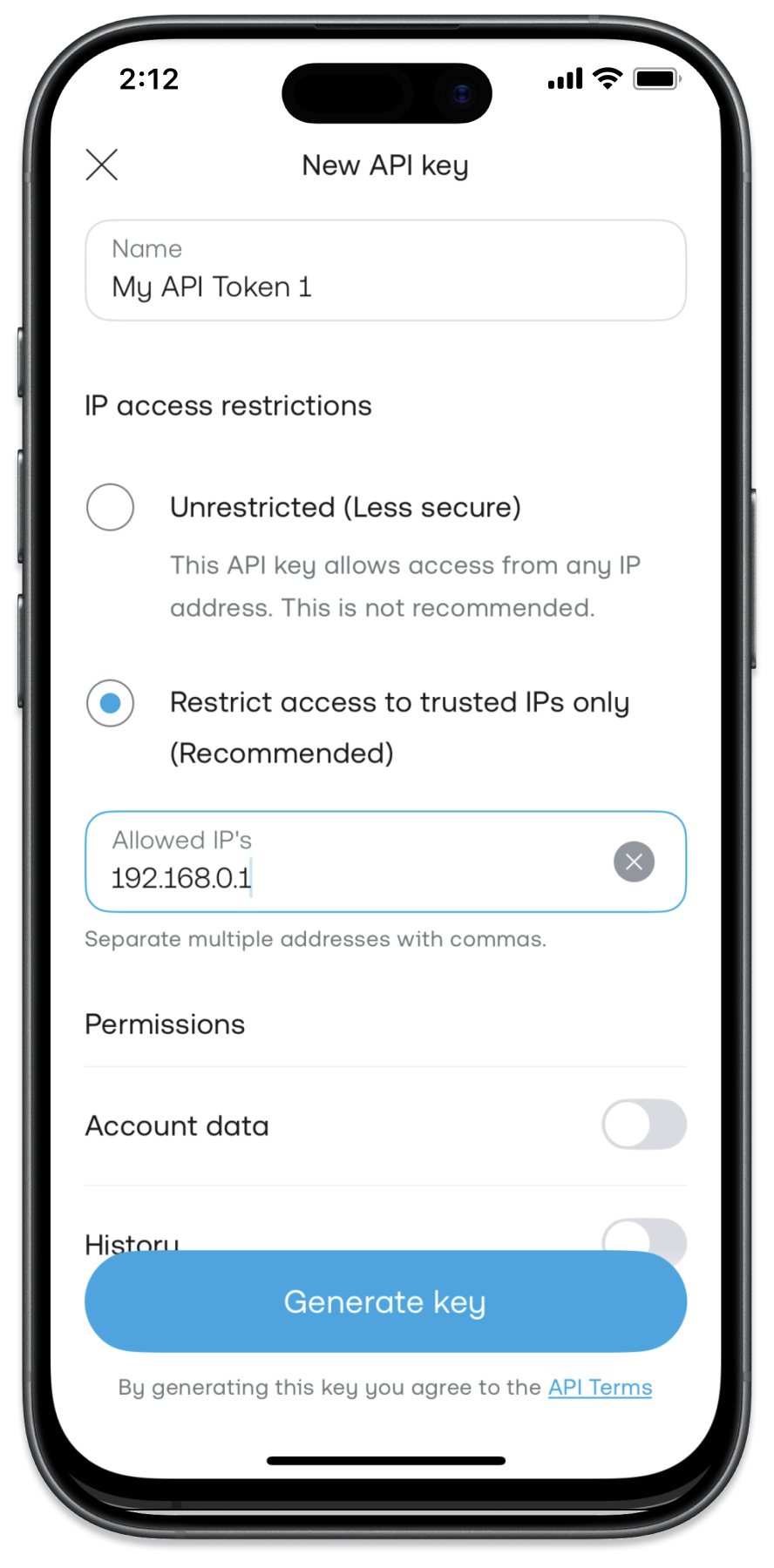
2. Name the key, set the permissions, and choose IP access. On the New API key screen, three things matter:
- Name it "Openbook Analytics" so you'll recognise it later.
- Under Permissions, switch on only "Account data" and "Portfolio". Leave everything else off — especially anything under Orders.
- Under IP access restrictions, choose Unrestricted. Openbook connects from its own secure servers, not from your phone or laptop, so restricting the key to your own device's IP address would stop it working.
Then tap Generate key (which agrees to Trading 212's API Terms).
3. Copy your API Key ID and Secret Key. Trading 212 now shows two values: an API Key ID and a Secret Key. Copy both. When you connect on Openbook, the API Key ID goes in the API key box and the Secret Key goes in the API secret box.
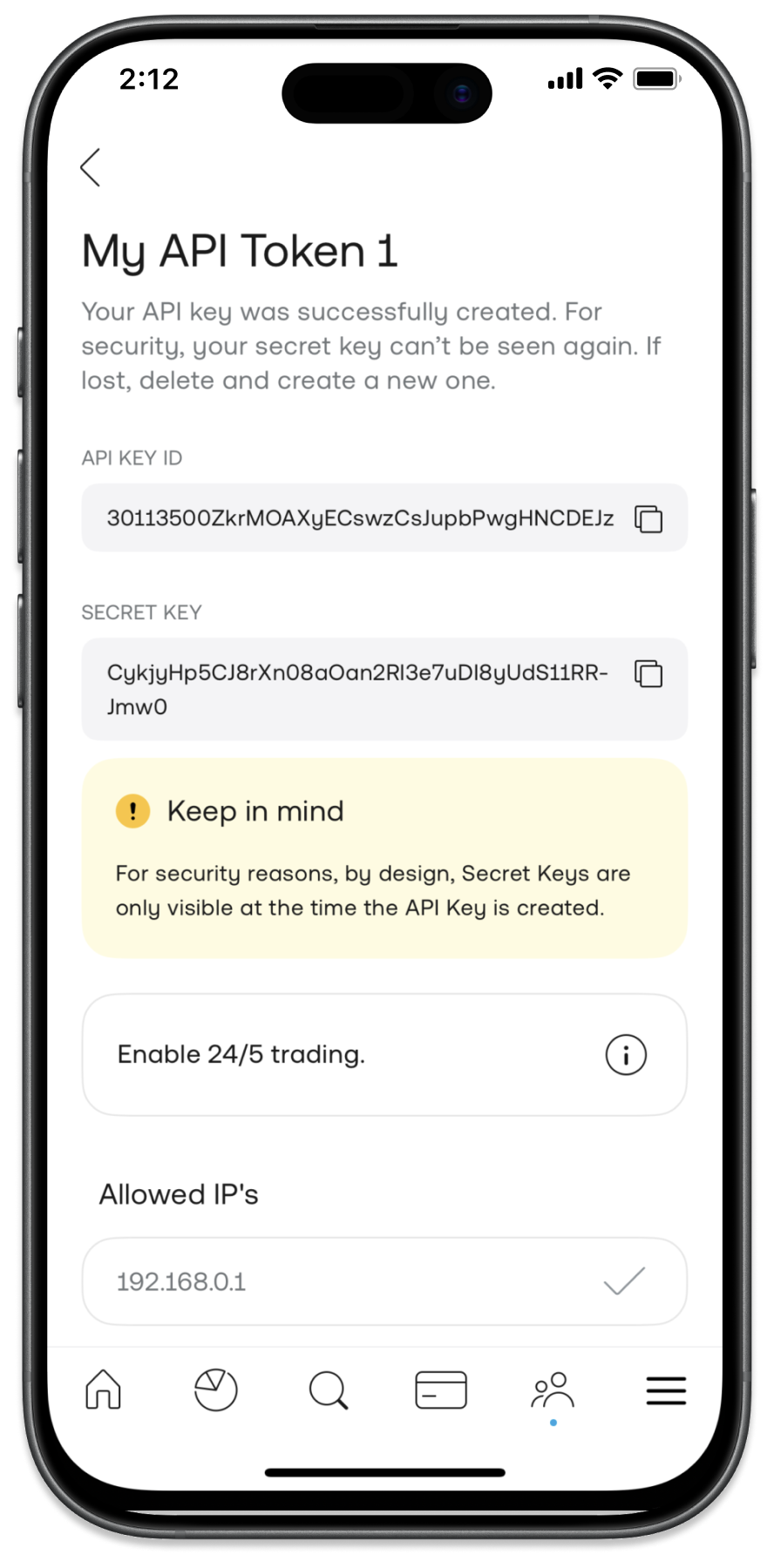
4. Treat both values like a password. Don't share them, post them anywhere, or email them to yourself in plain text. Anyone with your API Key ID and Secret Key could read your portfolio.
Connect it to Openbook
With your key and secret copied, the Openbook side takes under a minute.
1. Open the connect window. On Openbook, go to your Portfolio page and choose Import from Trading 212, or head to Account → Settings and connect from your broker connections. A short three-step window opens.
2. Set up your account details. Choose the account type (Invest or Stocks ISA) that matches the key you generated, pick the environment (Live or Practice), and choose your display currency (GBP or USD) — this is simply how your totals are shown, converted at Openbook's live exchange rate. You can change the currency later on the Portfolio page.
3. Paste your API key and API secret. Drop the two values into their matching boxes and select Connect.
Openbook checks the credentials with Trading 212, imports your positions and cash, and automatically builds a portfolio for you on the Portfolio page — tagged so you always know it came from Trading 212. Holdings on the London and US markets are matched to Openbook securities so you get full scores and research pages for each one.
Tips for a smooth connection
A few small things make the difference between "it just worked" and "why won't it connect":
- Match the account type to the key. A key generated on your Invest account won't validate if you pick "Stocks ISA" in Openbook, and vice versa.
- Match Live vs Practice. Use the same environment you were in when you created the key.
- Copy carefully. Stray spaces at the start or end of the key or secret are the most common cause of a rejection. Openbook trims obvious whitespace, but a clean copy-paste is best.
- Expect a couple of "unmatched" lines. Openbook covers UK (London) and US listings. Holdings on other exchanges — say, a stock listed in Frankfurt or Amsterdam — still count toward your totals but won't get an Openbook research page. That's normal, not an error.
Keeping your Trading 212 account secure
Connecting is designed to be low-risk, but it's your money, so here's exactly where you stand:
- Read-only means read-only. With only "Account data" and "Portfolio" granted, the key physically cannot trade or withdraw.
- Your key is encrypted at rest. Openbook stores it as encrypted ciphertext, never plain text, and never shows it back to you or anyone else.
- Disconnecting is not the same as revoking. If you disconnect in Openbook, it deletes Openbook's encrypted copy of your key and the portfolio it created — but the key itself stays alive on Trading 212's side. To switch it off completely, delete the key inside Trading 212 under Settings → API. It's good housekeeping to do both if you ever stop using the connection.
Troubleshooting
"Trading 212 rejected these credentials." Usually one of three things: a typo or stray space in the key or secret, the wrong account type selected (Invest vs Stocks ISA), or a Live/Practice mismatch. Double-check each, and if in doubt, generate a fresh key in Trading 212 and try again.
"Rate limit reached — try again in a minute." Trading 212 limits how often its API can be called. Wait sixty seconds and retry — nothing is wrong.
"I can't find API (Beta) in Trading 212." It's a beta feature, so make sure your app is updated to the latest version. It lives under Settings → API (Beta).
"Some of my holdings are missing." Check the "unmatched" count on the holdings view. Instruments outside the UK and US markets aren't matched to an Openbook page by design; their value still counts toward your totals.
If Trading 212 changes their app, their own reference is the official Trading 212 API help article — but the steps above are written specifically for connecting to Openbook.
Ready to connect?
Once your Trading 212 portfolio is in Openbook, everything else opens up: live performance, dividend income tracking, diversification checks, and Reward and Risk scores on every holding. Head to your Portfolio page to start the import, or browse more Learn guides if you'd like to read first.